Rank PDFs in Google: Steps for Small Businesses
Learn how to optimise PDFs so Google can index and rank them, boosting visibility for your business content.
How Google Handles PDFs for Search
If your business publishes PDFs—menus, brochures, guides, or reports—you likely want them to appear in search results. Many business owners assume that if Google can’t “read” a PDF, it won’t rank. In reality, Google can index PDFs, but the process differs from how it handles standard web pages.
Google’s crawlers download the PDF file and extract the text content to build an index entry. This means that text-based PDFs are significantly more likely to be discovered than image-only PDFs (scans). While Google does not publish a detailed, step-by-step technical specification of its PDF parsing algorithm, the general consensus among SEO professionals is that the engine extracts visible text and metadata.
Key distinctions to understand:
- Text Extraction: Google reads the text layer of the PDF. If the text is selectable, it is likely indexable. If the PDF is a flat image of text (a scan), Google may struggle to read it unless it has processed the file with Optical Character Recognition (OCR) capabilities, which can be inconsistent.
- Images: Images embedded in a PDF do not have their own URLs in the same way they do on an HTML page. Consequently, these images are generally not indexed in Google Image Search. The image is part of the PDF document, not a separate web asset.
- File Size and Complexity: While Google has not published a hard, official maximum file size limit for indexing, extremely large files may take longer to process or may be truncated during parsing. Keeping files reasonably sized is a practical best practice, though specific "cutoff" numbers vary and are not guaranteed by Google.
Understanding this flow helps you prioritize creating clean, text-based documents. A well-structured PDF with clear text is more likely to be understood and indexed than a complex, image-heavy file.
Checklist: Making Your PDF Search-Friendly
Before you publish a PDF, run through this technical checklist. You can copy these items into a spreadsheet or a notes app to ensure every document meets the baseline requirements for visibility.
| ✅ Item | Why it matters | Quick tip for implementation |
|---|---|---|
Clear, descriptive filename (e.g., 2024-sales-report.pdf) | The filename is a strong signal about the document’s topic. | Rename the file before uploading; avoid generic names like doc1.pdf or final_v2.pdf. |
| Text-based format | Google extracts text from the document. Scanned images are harder to index. | If you have scanned documents, run them through an OCR (Optical Character Recognition) tool to create a text layer before saving as PDF. |
| Internal links with descriptive anchors | Links within the PDF help Google understand the context and relationship between your pages. | In the PDF, link phrases like “Our 2024 pricing plan” to the corresponding page on your site, rather than using generic “click here.” |
| Outbound links to reputable sites | Linking to authoritative sources can add context and credibility to your document. | Link to relevant government guidelines, industry standards, or supplier pages where appropriate. |
| Logical folder structure | A clean URL structure (e.g., /resources/pdfs/) signals hierarchy and makes URLs readable. | Store PDFs at a predictable path on your domain, such as https://yourbusiness.com/resources/pdfs/2024-sales-report.pdf. |
Note on Metadata: While some tools allow you to add a "Subject" or "Description" in the PDF properties, it is not confirmed by Google documentation that these fields are treated identically to HTML meta descriptions. Therefore, you should not rely on PDF metadata as your primary SEO strategy. Focus on the visible text content and the URL instead.
Text-Based vs. Image-Only PDFs
To clarify the difference, here is a side-by-side comparison of how the two formats typically perform:
| Feature | Text-Based PDF | Image-Only PDF (Scan) |
|---|---|---|
| Indexability | High. Google can easily extract and index the text. | Low to Medium. Relies on Google’s OCR capabilities, which may be incomplete or inaccurate. |
| Accessibility | High. Screen readers can read the text. | Low. Screen readers cannot read image-only text without an OCR layer. |
| File Size | Usually smaller. | Often larger due to image compression. |
| Best For | Guides, reports, manuals, menus with text. | Architectural drawings, artistic lookbooks, signed contracts. |
If your document is primarily visual (like a fashion lookbook), ensure there is still some accompanying text in the file, even if it’s just a caption or a description of the collection. This gives Google something to index.
Optimising the Content Inside the PDF
Once the technical foundation is set, focus on the content. Google treats the extracted text from a PDF similarly to text on a web page, so standard on-page SEO principles apply.
Lead with a Concise Introduction Write 2–3 sentences at the start of the document that include your primary keyword. This helps Google (and human readers) understand the document’s purpose immediately.
- Example for a clinic: “Our 2024 Wellness Guide outlines preventive care strategies, including nutrition and exercise tips for families in [City].”
- Example for a restaurant: “The Spring 2024 Menu features seasonal, farm-to-table dishes using local ingredients.”
Use Heading Styles Most PDF editors allow you to set heading levels (H1, H2, H3). When Google processes the file, these structural cues help organize the content.
- Use one main title (H1) for the document name.
- Use subheadings (H2) for major sections like “Nutrition” or “Mains.”
- Avoid using heading styles for decorative purposes; use them for actual structure.
Include a Clickable Table of Contents A linked Table of Contents (TOC) provides additional internal links. This improves crawl depth and helps users navigate the document. Most PDF tools allow you to create bookmarks that function as TOC links.
Add Descriptive Alt Text to Images While Google generally does not index images inside PDFs for Image Search, adding alt text is still a good practice for accessibility and may contribute to the overall text extraction process.
- In Adobe Acrobat, right-click an image → Edit Alt Text → describe the image briefly (e.g., “Grilled salmon with lemon glaze”).
- Note: Do not assume this will guarantee image search visibility. It is primarily an accessibility and context feature.
Footer with Contact Details Including your business name, address, and a link to your contact page in the footer of every page signals local relevance and helps users find you.
- Example: “HealthyLife Clinic – 123 Main St, Springfield – (555) 123-4567 – https://healthylife.com/contact”
Natural Keyword Usage Place your target keywords naturally in headings, the introduction, and body paragraphs. Avoid keyword stuffing, which can hurt readability and may be flagged as spam.
Publishing and Verifying Indexing
Uploading the file is only the first step. You must ensure Google can access and crawl the document.
Host on Your Own Domain Store the PDF on your website’s server (e.g.,
yourbusiness.com/pdfs/menu.pdf). Do not host critical business documents on third-party platforms like Dropbox, Google Drive, or WeTransfer.- Why: Links from third-party domains pass authority to that host, not to your business. Additionally, you have less control over the URL structure and access permissions.
Avoid Authentication Walls Do not password-protect the PDF. Google’s crawlers cannot log in to access protected files.
- Nuance: Beyond authentication, ensure you are not accidentally blocking the file with
robots.txtrules ornoindexmeta tags/headers. If you want the PDF to be public, it must be publicly accessible.
- Nuance: Beyond authentication, ensure you are not accidentally blocking the file with
Consider an HTML Landing Page While not strictly required, creating a simple HTML page that describes the PDF and links to it can be beneficial. This page acts as a gateway, providing additional context for Google and a better user experience.
- Trade-off: This requires maintaining two assets (the HTML page and the PDF). If you have limited resources, linking directly to the PDF is acceptable, but an HTML wrapper is often easier for users to share and for Google to understand.
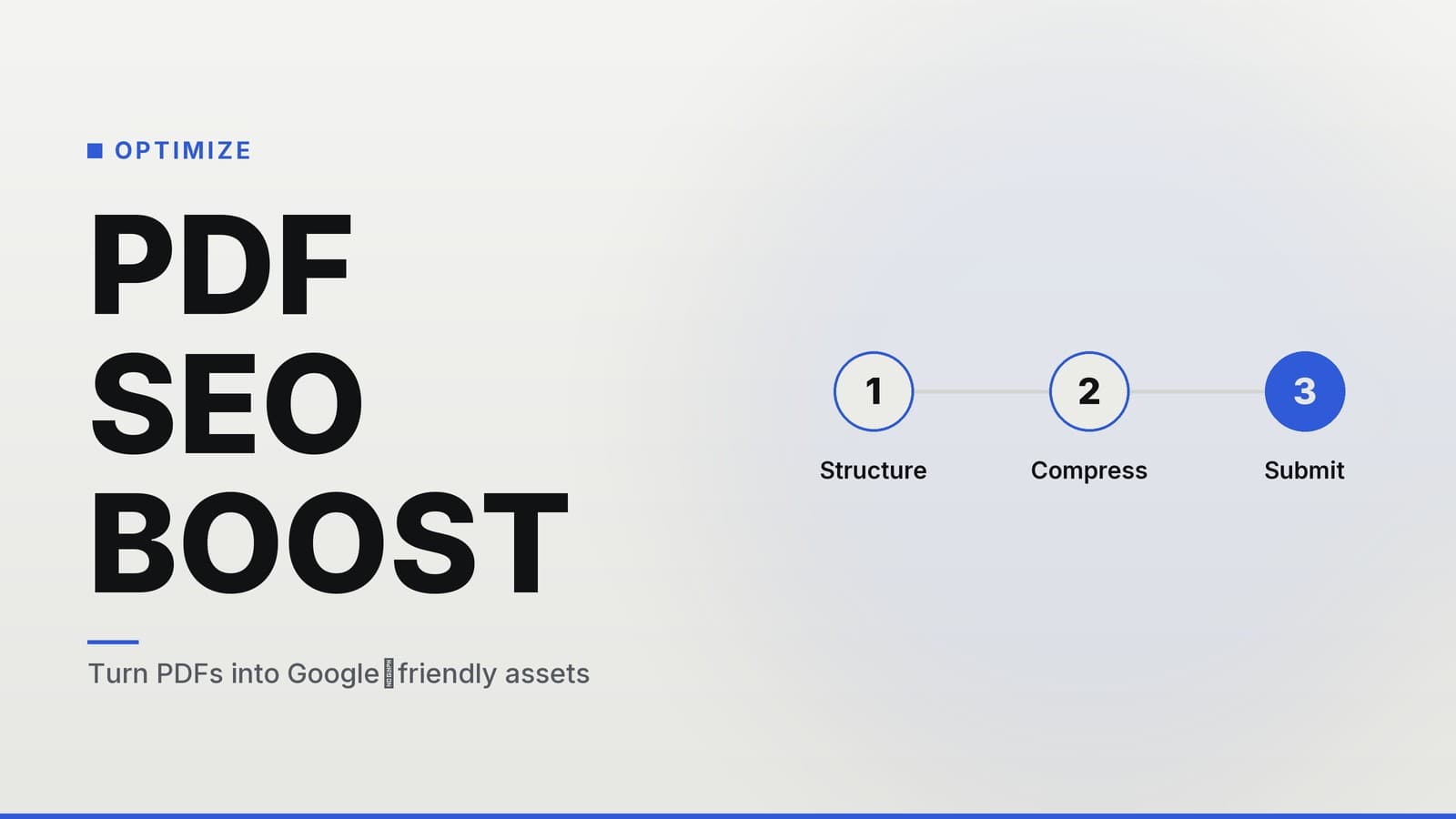
Submit and Monitor in Search Console Use Google Search Console to check the status of your PDF.
- Go to URL Inspection and paste the PDF URL.
- Click Request Indexing if the file is new.
- Check the Coverage report for any errors, such as “Blocked by robots.txt” or “Noindex.”
Handle Updates Carefully If you update the PDF (e.g., a menu change), keep the same URL if possible.
- Minor Updates: You generally do not need to resubmit the URL in Search Console for small edits (like fixing a typo or updating a price). Google will recrawl the URL as part of its normal schedule.
- Major Changes: If the content changes significantly, resubmitting the URL can prompt a faster recrawl.
- URL Changes: If you must change the URL, set up a 301 redirect from the old PDF URL to the new one to preserve any existing link equity.
Common Pitfalls and How to Avoid Them
Even with a solid process, mistakes happen. Here are the most common issues business owners face and how to fix them.
| Pitfall | Why it hurts | Quick fix |
|---|---|---|
| Scanned PDFs without OCR | Google may not be able to read the text, resulting in poor or no indexing. | Run the file through an OCR tool to add a text layer. Verify by trying to select and copy text from the PDF. |
| Hosting on Third-Party Domains | You lose SEO benefits; links point to the host, not your site. | Move the file to your own domain. If you must use a third-party host for storage, link to it from your site, but expect limited SEO impact. |
| Excessive File Size | Large files may take longer to crawl or process. | Compress images within the PDF. Use “Save As Optimized PDF” in your editor. |
| Broken Internal Links | If the PDF links to a page that no longer exists, it hurts user experience and crawl efficiency. | Audit your internal links before publishing. Update them when your website structure changes. |
| Ignoring Mobile Experience | Large PDFs load slowly on mobile devices, leading to high bounce rates. | Test the PDF on a smartphone. Ensure the file size is reasonable and the text is readable without excessive zooming. |
Real-World Scenarios
- The Local Gym: A gym uploaded a scanned class schedule. It did not appear in search results for “gym class schedule [city].” After running the file through OCR to add a text layer and updating the filename to be more descriptive, the PDF began to appear in search results.
- The Real Estate Agency: An agency stored property brochures on a Google Drive link. These URLs were not associated with the agency’s domain, so the PDFs did not contribute to the site’s authority. Moving the PDFs to the agency’s own website (
agency.com/brochures/) improved their visibility and association with the brand.
How HeyGrowin Can Help
If managing PDFs and their SEO impact feels overwhelming, HeyGrowin can assist with the technical setup. We can build clean website sections that list and link to your documents, set up Google Search Console integration, and create custom landing pages to enhance discoverability. Our tools are designed for non-technical business owners, allowing you to upload, organize, and track your documents without needing a developer.
Note: This information is for general business and technical guidance only. It does not constitute legal, medical, or financial advice. For specific regulatory or professional compliance questions, please consult a qualified expert in your field.
Frequently asked questions
Do images in PDFs get indexed by Google?
Google can recognise images in PDFs but they are not processed like regular web images, so they may not appear in image search results.
Can I link to a PDF from another site and still rank?
Yes, but the PDF must be publicly accessible and not blocked by robots.txt; external links help but the PDF’s own SEO matters.
Is there a limit to how many PDFs I can publish?
There is no hard limit, but each PDF counts as a separate URL; keep them organised to avoid crawl budget issues.