Use Channel Prioritization to Cut Ad Spend and Boost ROI
Learn how Google Ads’ new Channel Prioritization and Budget Allocation can help you spend smarter and improve return on ad spend.
Overview of Channel Prioritization and Budget Allocation
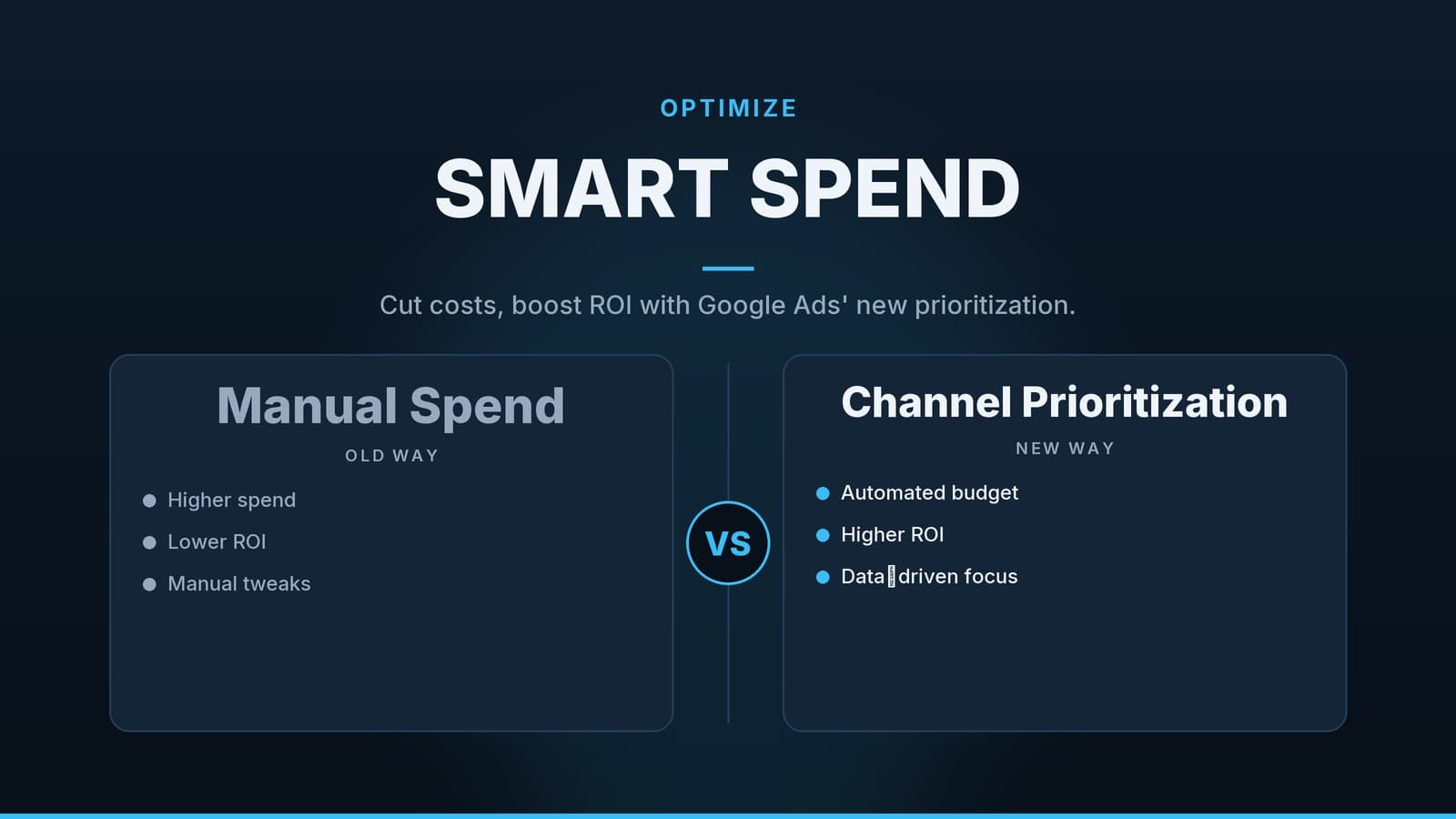
Google Ads now lets you indicate which inventory should receive spend first and, for any inventory you mark as lower‑priority, how much of your daily budget may flow there.
| Setting | What it controls | Typical use |
|---|---|---|
| Channel priority | Marks a channel (e.g., Google Search, Search Partners, Display Network) as High or Low. The system will try to spend on high‑priority channels first; any remaining budget can be used on low‑priority channels, subject to any caps you set. | A local service business wants Search to dominate while still testing Display. |
| Low‑priority cap | Limits the proportion of the daily budget that can be spent on a low‑priority channel (e.g., “no more than 15 % of today’s budget”). | A boutique restaurant wants to experiment with YouTube ads but does not want them to consume more than a small slice of the overall spend. |
Note: By default, most accounts treat all channels as high priority, but you can change any channel at any time. The priority setting does not guarantee that a channel will receive a specific amount of spend; Google still applies its usual performance‑based allocation logic.
When This Feature Makes Sense (and When It Doesn’t)
| Situation | Why channel prioritization helps | Alternative approaches you might consider |
|---|---|---|
| Tight daily budget – you need to protect the channel that consistently drives conversions. | You can lock the bulk of the budget to that channel (high priority) and prevent other inventory from draining it. | Use portfolio bid strategies (e.g., Target CPA) that automatically shift spend toward higher‑performing campaigns, but they do not let you restrict spend by inventory type. |
| Testing a new inventory – you want data without risking core performance. | Set the new channel to Low priority and apply a modest cap (e.g., 10 %). The test can run safely while the main channel continues to receive the majority of the budget. | Apply bid adjustments (e.g., device or location) to lower the aggressiveness of the test, but adjustments affect all placements within the campaign, not just the new inventory. |
| Balancing a mixed‑media plan – you run both local search and national display. | Prioritization lets you keep local search high while capping national display, aligning spend with strategic goals. | Create separate campaigns with distinct budgets; this works but requires more manual budget management. |
| You have no immediate performance data – you’re launching a brand‑new campaign. | Starting with all channels high priority is safe; you can later downgrade any under‑performing channel. | Rely solely on automated bidding; the system may allocate spend to low‑performing inventory before you have a chance to intervene. |
Bottom line: Use channel prioritization when you need inventory‑level control in addition to the usual bidding and budgeting tools. If you only need to shift spend between whole campaigns, portfolio strategies or separate budgets may be simpler.
Step‑by‑Step Setup
Below is a practical walk‑through that works for Search, Shopping, Performance Max, and Demand Gen campaigns. The exact UI labels can vary slightly, so look for the concepts rather than exact wording.
1. Open the campaign you want to adjust
Navigate to Campaigns → select the campaign → click Settings.
2. Locate the channel‑priority controls
- Search for a section titled Channel priority, Inventory, or Network settings.
- You will see a list of channels such as Google Search, Search Partners, Display Network, etc.
3. Set the priority for each channel
- For the channel you want to protect (e.g., Google Search), leave the label High.
- For any channel you wish to test or de‑emphasise, change the label to Low.
4. (Optional) Add a spending cap for low‑priority channels
- Find the field named Low‑priority cap or Budget allocation limit.
- Enter a percentage – a common starting point is 10‑15 % of the daily budget, but you can adjust based on how much you’re willing to risk.
5. Save the changes
6. Verify the configuration
- Go to the Segments tab, choose Network (or Placement for Display).
- Confirm that the spend distribution matches your expectations for the first 24‑48 hours.
7. Review and iterate
- After at least one week, compare key metrics (CPA, ROAS, conversion volume) for each channel.
- If a low‑priority channel shows a comparable or better CPA, consider raising its cap or promoting it to High priority.
Tip for service‑oriented businesses: Start with a 12‑15 % cap on Search Partners while keeping Google Search high. After two weeks, compare the CPA. If Search Partners are cheaper, you can safely increase the cap or move the channel to High priority.
Practical Checklist & Quick Reference
| Action | Why it matters | How to do it |
|---|---|---|
| Define the primary conversion goal (e.g., bookings, sales) | Gives a clear benchmark for evaluating each channel. | Write the goal in a simple note or spreadsheet before you begin. |
| Identify the channel that already meets that goal | Establishes the “high‑priority” baseline. | Look at the Network segment in the last 30 days. |
| Create a test budget (10‑15 % of daily spend) for any new channel | Prevents surprise overspend while you gather data. | Set the low‑priority cap in the channel settings. |
| Add UTM parameters to all ads, including low‑priority ones | Allows you to compare performance in Google Analytics or your CRM. | Use a URL builder; include utm_source=google, utm_medium=cpc, utm_campaign=yourcampaign. |
| Schedule a weekly review of the Network segment | Early detection of under‑performing placements. | Set a calendar reminder; export the segment report to CSV for easy comparison. |
| Document changes (date, channel, priority, cap, observed CPA/ROAS) | Builds a history you can reference for future decisions. | Simple spreadsheet with columns: Date, Channel, Priority, Cap, CPA, ROAS. |
| Adjust caps or priorities based on data | Keeps the budget aligned with actual performance. | Return to Settings → Channel priority → update as needed. |
Quick reference for common budget scenarios
| Scenario | Recommended priority set‑up | Suggested cap (if any) |
|---|---|---|
| Very limited daily budget (≤ $30) | Keep only Google Search High; set all others Low. | 0 % (no spend) or 5 % if you must test. |
| Moderate budget with a new Display test | Search High, Display Low. | 10‑15 % of daily budget. |
| Established brand running both Search and YouTube | Search High, YouTube (Performance Max) Low initially. | 20 % cap, increase after 2‑3 weeks if CPA is comparable. |
| Multi‑location retailer using Shopping | Shopping High, Search Partners Low. | 12 % cap, monitor weekly. |
Comparing Prioritization with Alternative Tools
| Feature | Channel Prioritization | Portfolio Bid Strategies (e.g., Target CPA) | Bid Adjustments (device, location, etc.) |
|---|---|---|---|
| Control over inventory type | Yes – you can label Search vs. Display, etc. | No – the system optimises across all inventory automatically. | No – adjustments affect all inventory within a campaign. |
| Granular spend caps | Percentage caps on low‑priority channels. | No explicit caps; budget is allocated based on performance signals. | No caps; only bid multipliers. |
| Interaction with automated bidding | Works in addition to Target CPA/ROAS; the system still tries to meet the bid goal within the priority constraints. | Bidding goal is the primary driver; no inventory‑level limits. | Bid multipliers can indirectly limit spend but are less precise. |
| Ease of testing new inventory | Simple – set channel to Low and add a small cap. | Requires creating a separate test campaign or portfolio, which adds complexity. | Requires separate campaigns or ad groups for clean testing. |
| Risk of overspending on low‑performing inventory | Low – caps prevent large spend on low‑priority channels. | Higher – if the algorithm mis‑allocates, spend can shift to under‑performing inventory. | Medium – aggressive multipliers can still drive spend to low‑performing segments. |
When to combine them: Use Target CPA (or ROAS) as your overall bidding goal, then apply channel prioritization to make sure the budget first flows to the inventory that historically meets that goal. This layered approach gives you both performance optimisation and inventory‑level safety.
Illustrative Business Scenarios (Qualitative)
Dental practice in a city centre – Search ads consistently bring appointment bookings. The practice sets Search to High and Search Partners to Low with a 12 % cap. After two weeks, the CPA on Search Partners is noticeably higher, so the practice keeps the channel Low.
Family‑style restaurant – The owner wants to test local‑interest Display ads. Display is set to Low with an 8 % cap. Within the test period, Display contributes a modest share of reservations at a CPA roughly 20 % lower than Search. The owner raises the cap to 15 % and later promotes Display to High priority for the lunch‑time slot.
Boutique clothing retailer – Shopping campaigns drive most sales. The retailer adds a YouTube component via Performance Max but leaves it Low with a 10 % cap. YouTube generates brand‑awareness clicks but few direct purchases, so the cap stays low and the channel remains Low priority.
Gym & personal‑training studio – Search and Google Maps deliver most leads. The studio experiments with Discovery ads (Demand Gen) at a 5 % cap. The CPA matches Search, so the studio promotes Discovery to High priority for weekend hours when search volume dips.
These examples show how a modest cap lets you experiment safely and scale quickly when the data supports it.
Common Pitfalls and How to Avoid Them
| Pitfall | What can happen | How to prevent it |
|---|---|---|
| Leaving every channel at the default High priority | Low‑performing inventory may consume budget, raising overall CPA. | Review the channel list after each campaign launch; set any non‑core channel to Low. |
| Choosing a cap that is too restrictive | The campaign may finish the day with unused budget, missing potential conversions. | Start with a 10‑15 % cap; if the low‑priority channel shows a healthy CPA, raise the cap gradually. |
| Changing priorities during peak traffic hours | Sudden shifts can cause reporting spikes that look like “budget spikes” or “drops”. | Make changes during low‑traffic periods (early morning) and allow at least 24 hours for the system to stabilise. |
| Ignoring placement‑level performance | You might miss a specific site or app that delivers cheap conversions within a low‑priority channel. | Use the Placement breakdown to whitelist high‑performing sites or blacklist costly ones. |
| Assuming caps protect high‑priority spend completely | Caps only limit low‑priority spend; a surge in high‑priority traffic can still exhaust the daily budget. | Monitor the Network segment daily; if high‑priority spend spikes, consider raising the overall daily budget or adjusting bids. |
Next Actions for Your Business
- Audit your current campaigns – Identify which channel currently delivers the lowest CPA or highest ROAS.
- Pick one low‑performing or untested channel to set as Low priority with a modest cap (10‑15 % of daily budget).
- Implement the changes using the step‑by‑step guide above.
- Track performance for at least two weeks – compare CPA, ROAS, and conversion volume against the baseline you recorded in your audit.
- Iterate – raise caps, promote channels, or add new low‑priority tests based on the data you collect.
By systematically directing spend toward proven inventory while containing the risk of new placements, you can stretch a limited ad budget further and improve overall ROI.
About the Author
HeyGrowin helps small‑ and medium‑size businesses set up and optimise Google Ads accounts, build tracking pipelines, and connect advertising data to booking, CRM, and inventory systems. Our team can create a custom dashboard that shows the full customer journey from click to sale, making it easier to fine‑tune ad spend. Learn more at https://heygrow.in.
Disclaimer: The suggestions in this article are intended as general guidance for managing Google Ads campaigns. They are not financial, legal, or medical advice. Always consider your own business circumstances and, if needed, consult a qualified professional before making budget or bidding decisions.
Related reading: If you need to capture leads that slip through the cracks, see our guide on Use Phonable Texting to Capture Missed Calls and Boost Sales.
Frequently asked questions
Do I need a special account to use Channel Prioritization?
No, the feature is available to all Google Ads accounts that support Search, Shopping, Performance Max or Demand Gen campaigns. Check the campaign settings to find the option.
Can I set different caps for different low‑priority channels?
The current interface allows a single percentage cap for all low‑priority channels within a campaign. If you need finer control, consider separate campaigns for each channel.
Will this affect my automated bidding strategy?
Google still applies your Target CPA or Target ROAS goals, but the budget is allocated first to high‑priority channels. Monitor performance after changes to ensure the bidding remains effective.